
remove_red_eye 387
page background

Bookmarks

Tech Tip Tuesday (May 5, 2026)

Bookmarks Tech Tip Tuesday (May 5, 2026)
BookmarksTech Tip Tuesday (May 5, 2026)

Not your tabs this time, but time to clean those saved links! Not your tabs this time, but time to clean those saved links!

Alt Text An informational infographic titled "Unorganized Bookmarks" vs. "Cleaned Bookmarks," illustrating a digital spring cleaning process for the Google Chrome browser. The graphic uses a clean, flat design aesthetic with a color palette of cyan (#27aae1), navy blue (#1b1642), and magenta (#e40054). On the left, a "Before" box shows a cluttered pile of folders labeled "Duplicated Links" and "Broken URLs." In the center, a "Cleaning & Optimization" panel depicts a simplified browser interface where mechanical arms and broom icons organize files and delete "dead links." On the right, the "After" box displays a neat, hierarchical tree of organized folders labeled "Work Projects," "Daily News," and "Shopping Lists." A large Chrome logo with a broom icon sits at the top center, tying the workflow together.
zoom_out_map

Welcome to Spring Cleaning!

It's May, and let's be honest, we aren't looking to make new waves in our teaching. However, we'd like to hone and clean up what we've done this year. Over the month of May, I'll toss out a few ideas about your digital organization and cleaning it up!


Here are the topics for May!


  1. Bookmarks
  2. Desktop and Downloads
  3. Email
  4. Digital Tools


*Image credit: Google Gemini Nano Banana 2

1. Locate your bookmarks 1. Locate your bookmarks

User uploaded image
zoom_out_map Show in original size

You have a bar at the top of your browser that will have different bookmark folder, whether they are managed by your organization, your personal bookmarks, Other Bookmarks for overflow, or the double arrow for additional overflow.


However, it might be easier to start cleaning from Bookmark Manager.

2. Go to Bookmark Manager 2. Go to Bookmark Manager

User uploaded image
zoom_out_map

Chrome’s Bookmark Manager is a helpful tool for viewing, organizing, editing, and deleting all of your bookmarks in one place. You can use it to create folders, sort links by topic, and clean up bookmarks you no longer need, making it easier to keep important websites organized and easy to find.


In Chrome, you can find it by clicking the three-dot menu in the top-right corner, then going to Bookmarks and lists > Bookmark Manager. The shortcut to open it is Ctrl + Shift + O.

3. Delete, Structure, Organize 3. Delete, Structure, Organize

Step 1: Delete
If you don't know what it is, delete the bookmark.

If it's needed, it will come back.

Why delete first? It makes structuring and organizing.


Step 2: Pick Structure

  • By Subject/Grade (Great for elementary generalists)
    Organize folders by what you teach, like Math 3rd or Reading 2nd.
  • By School Year Phase (Works for all teachers)
    Sort resources by timing, such as Back to School, Q2, Testing Season, or End of Year.
  • By Audience (Helpful when creating for students)
    Use a simple top-level split: For Me vs. For Students.
  • By Resource Type (Ideal for middle/high school teams)
    Group by format, including Videos, Lesson Plans, Assessments, and Tools.
  • PARA Method (Great for savvy organizers)
    Structure everything into Projects, Areas, Resources, and Archives. Link to PARA Method
  • Star System (Perfect for minimalists)
    Only save your best resources. Everything else can be quickly searched when needed.


Step 3: Organize

Move the items easily in your Bookmark Manager!


No additional tools, no promise from AI tools, just you organizing you!


More on bookmarks in Chrome

User uploaded image
zoom_out_map Show in original size

πŸ“… Put 10 minutes on your calendar to clean up those bookmarks! πŸ“… Put 10 minutes on your calendar to clean up those bookmarks!

Or you can put 30 minutes on mine to work on this together! Or you can put 30 minutes on mine to work on this together!

Schedule a time!
Click here to make it easy!
User uploaded image
zoom_out_map Show in original size
The NASA "meatball" logo: a blue circle containing white stars, a white orbital path, and the word "NASA" in bold white serif letters. A bright red, V-shaped vector wing sweeps across the center, extending past the edges of the circle.
zoom_out_map

Reach for the Stars with NASA

Explore space communications with NASA’s DSN Uplink-Downlink!

Your mission (in English or Spanish) is to send and receive important data without losing the signal, just like real NASA teams do when communicating with missions in space. It’s a fun way to learn about technology, satellites, and space exploration while building problem-solving skills.


Plus, NASA has a lot more games, planning resources, and lesson ideas for grades K-12!
Check it out here!
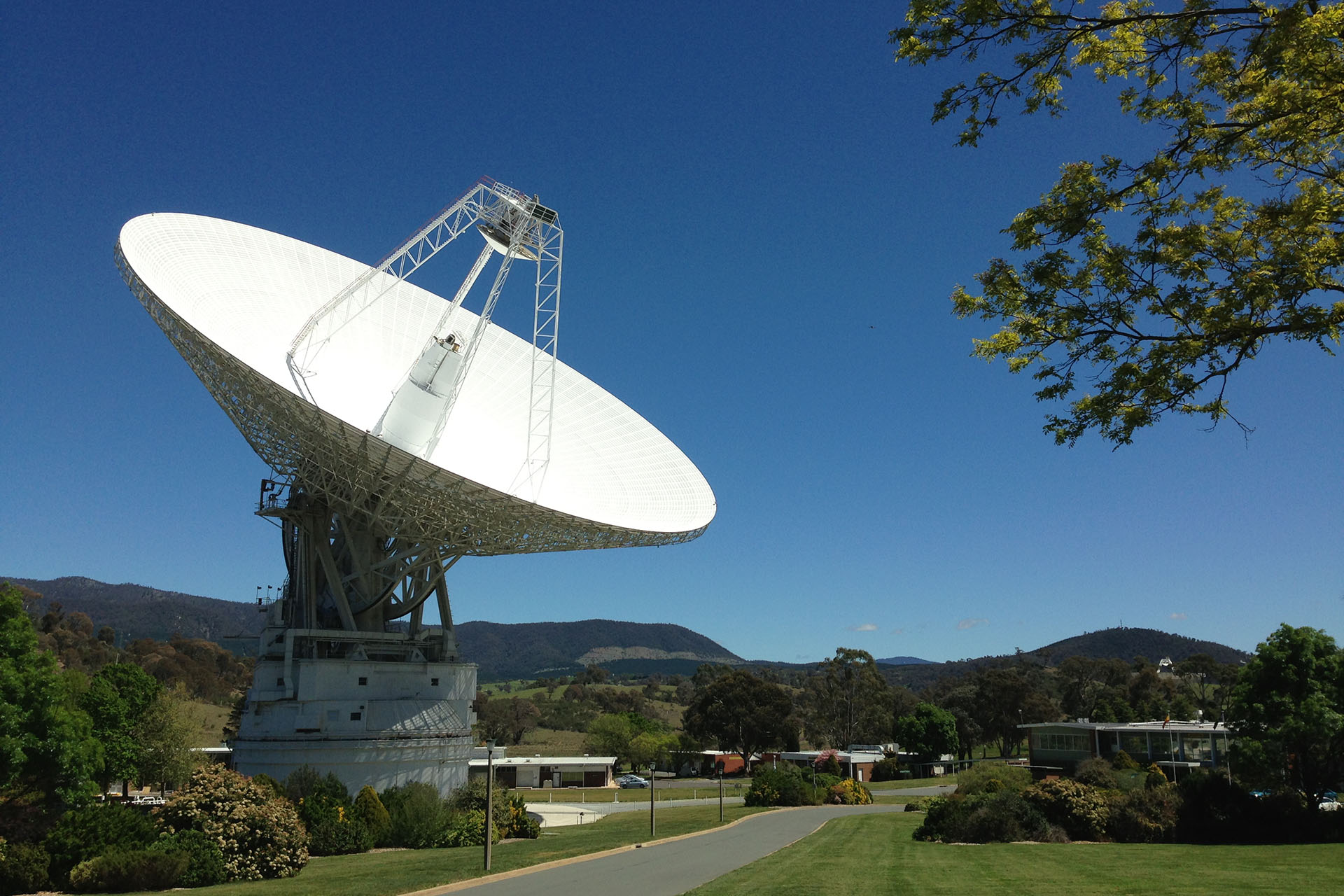
DSN Uplink-Downlink: A Deep Space Network Game

Play this game to send signals to spacecraft using the antenna dishes of the Deep Space Network.

launch nasa.gov
Teachers at a professional conference gather in a bright, modern convention center, networking and collaborating at round tables. A diverse group of educators in business attire wear name badges while chatting, taking notes on laptops and notebooks, and listening to a presentation displayed on a large screen in the background. Natural light fills the space, and candid conversations create an energetic, professional atmosphere.
zoom_out_map

Conferences all the way through 2032!

Teachers looking for professional learning opportunities can find conferences happening all over the world, with options for every interest and experience level in a vibe-coded website called K12 Conferences. Whether you want to broaden your perspective, explore new ideas, or build a niche skill, these events offer a wide range of ways to learn, connect, and grow. You can browse different formats, locations, and topics, plus discover available discounts and flexible ways to experience each conference.


This isn't a comprehensive list by any stretch for the local ones, but it's cool to check out what's out there!


K12 Conferences
User uploaded image
zoom_out_map Show in original size

Give it a topic, get some emojis.

Emoji Finder helps users search for emojis by keyword or by entering an emoji to discover related options. It makes it easy to copy and paste emojis into email, messaging, and social platforms.


For example, I asked about Mount Saint Helens since stratovolcanoes are cool, and here are the emojis to match that idea:

β›°οΈπŸ˜‡πŸ—»πŸ‚

A little literal on the angel, but cool for some emoji IDs!

Emoji Finder πŸ˜ƒ Search for Emoji

Super fast emoji search to copy and paste every emoji. πŸ™Œ

launch emojifinder.com
User uploaded image
zoom_out_map Show in original size
An informational schedule graphic from the Learning Technology Center for the week of May 4–8, titled "Click to schedule!" The schedule details morning (AM) and afternoon (PM) school visits for the Freeport School District. Monday, May 4: β€’ AM: Freeport Middle School β€’ PM: Center Elementary School Tuesday, May 5: β€’ AM: Jones-Farrar IB World School β€’ PM: Blackhawk Elementary School Wednesday, May 6: β€’ AM & PM: FSD 145 (Freeport School District) – Available for all schools! Thursday, May 7: β€’ AM: FSD 145 Alternative Education β€’ PM: Lincoln-Douglas Elementary School Friday, May 8: β€’ AM: Freeport High School β€’ PM: Empire Elementary School
open_in_new zoom_out_map Show in original size
Schedule a time!
Click here to make it easy!
An informational graphic for the Learning Technology Center (LTC) titled "Click to schedule!" It displays a weekly schedule for May 11–15, detailing school visits for the Freeport School District. The schedule is organized as follows: β€’ Monday, May 11: Freeport Middle School (AM); Center Elementary School (PM). β€’ Tuesday, May 12: Jones-Farrar IB World School (AM); Blackhawk Elementary School (PM). β€’ Wednesday, May 13: Freeport School District 145 (AM & PM); noted as "Available for all schools!" β€’ Thursday, May 14: Rising Pretzels Academy (AM); Lincoln-Douglas Elementary School (PM). β€’ Friday, May 15: Freeport High School (AM); Empire Elementary School (PM). Each school entry includes its official mascot or logo. The footer and header feature blue and pink geometric accents.
open_in_new zoom_out_map Show in original size
Alt text: β€œAnimated circular graphic with the Learning Technology Center (LTC) logo in the center, surrounded by rotating blue and black rings. The GIF includes the text β€˜Dad Joke of the Week.’”
zoom_out_map

What's Forrest Gump's password?

1forrest1


Made with MagicSchool's Teacher Joke Generator

User uploaded image
zoom_out_map

Brian Krause, Instructional Technology Coach

Contact me to collaborate on your next project, troubleshoot what you do currently, or to just answer a question you have!


πŸ“§ Email: bkrause@ltcillinois.org
πŸ“± Work Cell Phone: (815) 362-4791
πŸ₯ TwiX: @bmkeducation

Always happy to meet!
Choose a time here that works best for your schedule!
Tech Tip Tuesday
open_in_new zoom_out_map

Want to catch up on the old tips?

Click here or below for an archive of all Tech Tip Tuesday newsletters.
Make today tolerable!
Thanks for reading!
Loading indicator

close
Powered by