

MPS EdTech
Supporting Meaningful Tech Integration
Welcome Back from MPS EdTech!
👋 Welcome & First 30 Days 📅
Welcome to a brand-new school year! Whether you're stepping into your first classroom or your twentieth, this is a fresh opportunity to lead with purpose, grow your impact, and create engaging learning experiences for every student.
As part of being proactive this year, our EdTech team has lined up nearly 60 professional learning sessions during the first 30 days of school—designed to help you:
✅ Jumpstart your curriculum and digital tools in Canvas
✅ Strengthen communication with ParentSquare
✅ Present with purpose on your Newline Displays
✅ Manage student devices and stay focused on learning with Blocksi
All sessions are optional, flexible, and designed for real classroom needs across K–12. You can find topics, dates, and locations in this live PD schedule, which we’ll continue to update throughout the month.
Don’t forget to sharpen the saw by setting aside time for your own growth—starting with these sessions and continuing through the year. And be sure to watch for this monthly EdTech newsletter (delivered via S’more). It’s your one-stop shop for updates, tools, tips, and time-saving strategies. Go ahead and flag it now so you won’t miss a thing!
Here’s to a year of intentional growth, meaningful learning, and leading with technology.
🖥️ Time on Tech: A Balanced Approach to Screen Use in the Classroom
As Oklahoma enters a statewide conversation about the role of educational technology, we want to reaffirm MPS’s commitment to purposeful, developmentally appropriate technology integration. Our MPS EdTech mission is to prepare students for what they need to know and do next, and we know that tech can be a powerful instructional tool—but only when it supports the whole child and doesn’t replace meaningful interaction, exploration, and play.
✔️ Brain Development & Attention: Young learners benefit most from real-world, hands-on experiences and social interaction. Excessive screen time can impact attention spans and cognitive development.
✔️ Physical & Mental Health: Research shows too much screen time may contribute to increased sedentary behavior and reduced sleep quality. Balanced use supports healthier routines.
✔️ Academic Engagement: Students need diverse learning experiences—reading physical books, writing by hand, collaborating face-to-face, and yes, using tech to explore and create when appropriate.
🧠 Resources to Support You
-
AAP: Media and Young Minds – American Academy of Pediatrics guidelines on screen time in early childhood
-
Common Sense Education: Tech Balance – Ready-to-use lessons and parent resources
-
Edutopia: How Much Screen Time is Too Much? – Research-based insights on balancing tech use in K–12
-
UCLA CRESST Report on Digital Learning & Development – Study on technology’s impact on young learners
👩🏫 Your Role Matters
As always, MPS trusts teachers to use their professional judgment to create engaging, student-centered classrooms. We encourage you to:
-
Use screen time as one tool in your toolkit, not the main show.
-
Prioritize active engagement over passive consumption.
-
Incorporate breaks, movement, and human connection into your daily plans.
Let’s continue making tech work for our students—not the other way around.
Canvas Beginning of the Year Checklist
The bullet points below are linked to tutorials in the MPS Teacher Passport course in Canvas. If you're not enrolled in it, click here and select "Enroll in Course"
- "Favorite" the courses you want visible on your dashboard
- Customize your homepage
- Import course content
- Crosslist Sections (if you teach the same content multiple times per day)
- Use "Student View" to preview how your course will look to students
- Publish your course when you're ready for students to access it
💻 Windows 11 Is Here!
Most teacher devices across the district have now been upgraded to Windows 11. If your computer looks a little different this August—it’s not just you!
Check out Microsoft's guide to getting started to help you get comfortable with the updated look and feel, including the new Start Menu and taskbar.
🔄 Already updated? If you backed up your files using OneDrive before summer (especially your Desktop and Pictures folders), everything should automatically sync when you sign in.
💡 Not sure if everything is showing up correctly?
Check your OneDrive status by clicking the cloud icon in your taskbar and opening “Manage Backup.” Here's a quick video (shared in the spring) that walks you through it in under 5 minutes.
🛠️ Need help?
If you run into any issues or something doesn’t seem right:
-
Start with your site tech
-
Or submit a ticket through Incident IQ (iiQ)
We’re here to support you every step of the way—Windows 11 included!
Introducing Blocksi!
This year we are using Blocksi for internet filtering and device monitoring. Blocksi provides powerful tools to support classroom management and instruction.
YOU MUST CHECK YOUR LINKS AHEAD OF TIME!
This is a new filter for our district, and there will be sites that need to be unblocked. Please check your links a few days before your lessons, and submit an IIQ ticket if there are any links that are not working (+New Ticket >Software & Online Systems > Blocksi Web Filter).
USE CLASSLINK TO ACCESS THE CLASSROOM MANAGEMENT FEATURES
Teachers with students using Chromebooks and Windows devices will have the ability to monitor students' screens with Blocksi's Classroom Management features. Teachers will need to log in to ClassLink to access their Blocksi Teacher Dashboard. Once you are logged into ClassLink, you will see the Blocksi icon on your ClassLink Launchpad.
Importing your Sections from the Blocksi Teacher Dashboard
Once you are logged in to Blocksi, you will need to import your classes using the ClassLink icon at the top of your Blocksi Teacher dashboard.
TRAINING
There will be many training opportunities this month (see the First 30 days live PD Schedule at the top of this SMORE), but you can check it out and start learning anytime you want. Click here and use the code Spark24 to enroll in trainings for free.
Parent Handout
If you'd like to share information with your parents about a few of the main products we use in our district, you can visit our EdTech Website > Parent Tools to see the Parent & Student Technology Guide. We also have it attached right below here.
🎨 Canva for Education: What’s New?
🚀 New Features You’ll Want to Use:
-
Visual Suite 2.0: Combines Canva Docs, Whiteboards, Slides, Sheets, and more into one flexible design canvas for seamless lesson planning and material creation.
-
Canva Sheets with Magic Tools: Transform spreadsheets into visual, AI-enhanced tools with Magic Charts, Magic Insights, and Bulk Create features. Great for tracking data, designing visuals, and personalizing student resources.
-
AI‑powered content tools:
-
Canva Code lets you build interactive games, timelines, or quizzes via simple prompts.
-
Magic Write and AI voiceovers make writing, lesson scaffolds, and accessibility features faster and more dynamic.
-
-
Embedded Design School 2.0: Access courses, tutorials, and certifications directly inside Canva—with progress tracking and localized language support. Learn new features without leaving your design workflow.
✅ Why This Matters for MPS Teachers
-
Spend less time jumping between tools—plan, write, teach, assess, and design in one platform.
-
Save hours on paperwork and visuals—Magic tools help generate differentiated lessons, tracking sheets, certificates, and charts.
-
Make lessons truly interactive—even complex visual or data-driven content can be built with no coding required.
📌 Getting Started Tips
-
Log in via Clever to access your Canva for Education account—the free plan includes all of these new features.
-
Explore the new Design School page within Canva for quick guides and certs.
-
Try a mini‑project: use Canva Sheets + Magic Charts to design student progress trackers, or launch a parent newsletter quickly with AI‑generated visuals and layouts.
📱 ParentSquare: What’s New & What to Know for Back to School
ParentSquare has rolled out several helpful updates to streamline communication and improve usability across platforms. Here’s what’s new and noteworthy:
🔄 Account Switching
If you have both staff and parent roles in ParentSquare, you’ll now see separate accounts for each role. No need to take action—this is rolling out automatically. Switching between accounts will be quick and easy, and merging staff/parent accounts is no longer allowed.
🚨 Smart Alerts Search
You can now search your past Smart Alerts using keywords, making it easier to track and reference previous communications.
💬 Direct Message Fix
On the web version, messages in the inbox will no longer auto-open, which helps preserve “unread” status—just like on the mobile app.
🎓 Summer Camp for Educators
Now through September 12, 2025, explore free, self-paced PD through ParentSquare Summer Camp. It’s a fun, flexible way to sharpen your skills and learn new features—perfect for both teachers and administrators.
☎️ Virtual Phone Upgrade
If you are a district level employee and use Virtual Phone, you can now access it at the district site, making it easier to stay connected without navigating through individual school sites. No more navigating to a school just to access VP.
🗓️ Upcoming Webinars You Might Like
-
Streamlining Back-to-School Communications
August 7 @ 2 PM ET | Register -
ParentSquare & Smart Sites Integration
August 21 @ 2 PM ET | Register -
What’s New Review (August Edition)
August 21 @ 2 PM ET | Register
*See full PSQ 2025 Product Update Release Notes
Did your classrom get a Newline Interactive Display?
Kudos to the MPS Technology Department for our big rollout of Newline interactive display boards THIS SUMMER!
Below are ways to familiarize yourself with Newline interactive displays and how to get training:
- Visit our MPS EdTech Newline Resources page for quickstart guides and overviews.
- Access our MPS Teacher Passport Canvas course for more self-paced training opportunities.
- Be on the lookout for in-person and virtual trainings during Back-to-School (See the First 30 days live PD Schedule at the top of this SMORE).
Please submit a ticket in IIQ if you have any issues with your Newline board (+New Ticket > Computers & Electronics > type in the Asset Number from the sticker on the side of the board).
Seesaw
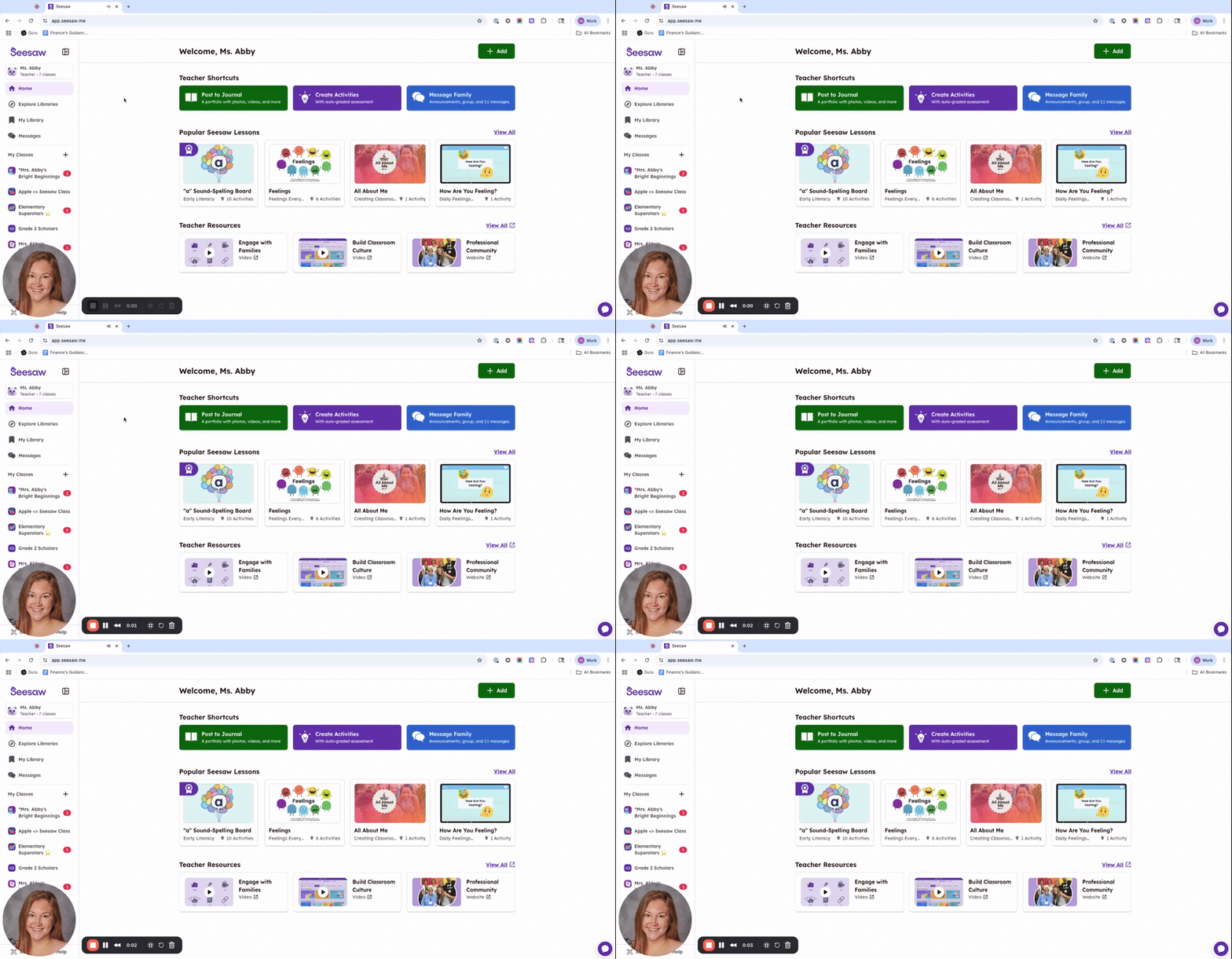
Seesaw Updates 2025
Discover the new Seesaw—smarter ✨ and easier than ever—designed to help you gain actionable insights into student understanding, make learning more engaging, target instruction, and streamline your workflow.
Clever
NEW SYNC BETWEEN INFINITE CAMPUS AND CLEVER
We had to change the sync between Infinite Campus and Clever over the summer, as the previous sync was no longer supported. We believe most of the data is coming over smoothly. However, we need you to let us know if there are any issues accessing the textbooks or platforms that you normally access through Clever. Please submit a ticket in IIQ to let us know of any issues (+New Ticket > Software & Online Systems > Clever).
ClassLink
A NEW SINGLE SIGN-ON ACCESS POINT
We are beginning to use ClassLink as a single sign-on point of access for some of the digital products we use in our district. When you login to ClassLink, you will land on what they call the Launchpad. Below are a few of the products that are visible to teachers.
- 1EdTech Trusted Apps Dashboard is where we keep a list of all the digital products we are vetting for student data privacy and safety. Access to 1EdTech through ClassLink provides a comprehensive view (staff only) of the products that are district Approved, Approved Limited, Denied, and Under Review.
- Blocksi - Classroom Management where you can monitor your students that are on either Chromebooks or Windows devices.
STUDENT PASSWORD RESET ABILITY FOR SECONDARY TEACHERS
The ClassLink My Classes password manager lets you change students' passwords from your ClassLink dashboard or initiate the password reset process for them.
IT’S THE FASTEST WAY TO GET A STUDENT BACK TO WORK!
⚠️ The password reset can take up to one full minute to take effect.
To change a password for one student in a class once you're in your desired class:
1. Log into ClassLink and select “My Classes”.
2. Select the specific section the affected student is rostered in.
3. Navigate to the Students page and click the student's name in the list.
4. Enter a temporary password for the student in the slide-over and click the Reset button.
⚠️ Be sure the temporary password is at least eight (8) characters long and meets all listed complexity requirements.
*On the student's next login, they'll be prompted to enter their temporary password and create a new one. Be sure to remind the student the temporary password only works one time.
Student Data Privacy
USE ONLY DISTRICT APPROVED DIGITAL PRODUCTS
The MPS Student Privacy Statement says "As teachers, we are trained and committed to protect the students' data we can access". Part of protecting students' data is by only using digital products with that are district approved. You should not be sharing students' personally identifiable information (PII) with digital platforms that are not district approved.
- To check if something is district approved before you use it, login to ClassLink and select the 1EdTech Trusted Apps icon from your ClassLink Launchpad.
- If a product is not district approved, you will need to submit a request through IIQ to get it vetted.
- This process can take up to several months, so be sure to submit your request far enough in advance to have it vetted before you plan to use it.
PROGRAM APPROVAL PROCESS
1. Visit the Program Approval MPS website for more information on the process.
2. Log into IIQ to submit your request (+New Ticket > Software & Online Systems > Get Approval for Program, App, Extension....).
Simplified RUP
EXPLANATION OF RESPONSIBLE USE POLICY FOR STUDENTS!
Below is a pdf of a simplified explanation of the Responsible Use Policy (RUP). Please download, print, and hang in your classroom. Please talk about these expectations with your students. It will help students understand their responsibility when using district devices.
Classroom Guidelines for iPads/Chromebooks
For more information about our MPS:1 Initiative,, Windows Devices, Interactive Boards, and more, please visit our Teaching With Devices webpage.
Below is a printout of recommendations for use of iPads in the classroom. Please read through these carefully and let the EdTech team know if you have any questions.
You can get more information about iPads in the PreK-2nd grade classrooms from our website.
GUIDELINES FOR CLASSROOM USE OF CHROMEBOOKS
Below is a printout of recommendations for use of Chromebooks in the classroom. Please read through these carefully and let the EdTech team know if you have any questions. You can get more information about Chromebooks and Chromebook Tips from our website.
Need Assistance?
If you don't have the MPS Teacher Passport course on your Canvas dashboard, click the image below to enroll. You'll find tutorials and resources on all things MPS EdTech!
Contact us at edtech@mooreschools.com if you have questions or need anything!