

Smore logo
remove_red_eye 2.3K
page background

All in Learning

All in Learning

All in Learning for Formative Assessment All in Learning for Formative Assessment

zoom_out_map

All in Learning

The All in Learning software lets teachers easily engage all of their students and track their progress. ALL In Learning's mission is to make student engagement and assessment as easy as possible so teachers can get their students excited about learning and be completely in touch with what they are understanding.

zoom_out_map

Engage & Learn App for iPad

Engage & Learn is a student-focused app that is part of ALL In Learning’s cloud-based instruction and assessment platform. Students can grade their own homework, assessments and utilize content downloaded from the campus’s ALL In Learning Cloud. Student outcomes can be automatically uploaded to their teacher’s instruction center in the ALL In Learning Cloud providing critical, timely information to the campus and Professional Learning Communities.
zoom_out_map

Assist App for iPad

The ASSIST app for iPad gives teachers a Mobile Teaching and Assessment Platform that can be used to present content, create assessments, and grade. Quick checks for understanding, assessment for learning, and response to intervention is easier than ever, and mobile.
Assist App for All in Learning Assist App for All in Learning

ASSIST for iPhone and iPad

Grading Bubble Sheets with the Document Camera Grading Bubble Sheets with the Document Camera

Grading Bubble Sheets

Printing QR Codes for Engage and Learn from All in Learning Printing QR Codes for Engage and Learn from All in Learning

Printing QR Codes for Engage and Learn from All in Learning

Activating an Engage & Learn Assessment from All in Learning Activating an Engage & Learn Assessment from All in Learning

Activating an Engage & Learn Assessments from All in Learning

Engage & Learn Students from All in Learning Engage & Learn Students from All in Learning

Engage & Learn Students from All in Learning
Click Sheet for All in Learning
* How to create a class in All in Learning
* How to print bubble sheets in All in Learning
Clicksheet for All in Learning.pdf

Clicksheet for All in Learning.pdf

launch drive.google.com
How to Grade an Assessment in All in Learning
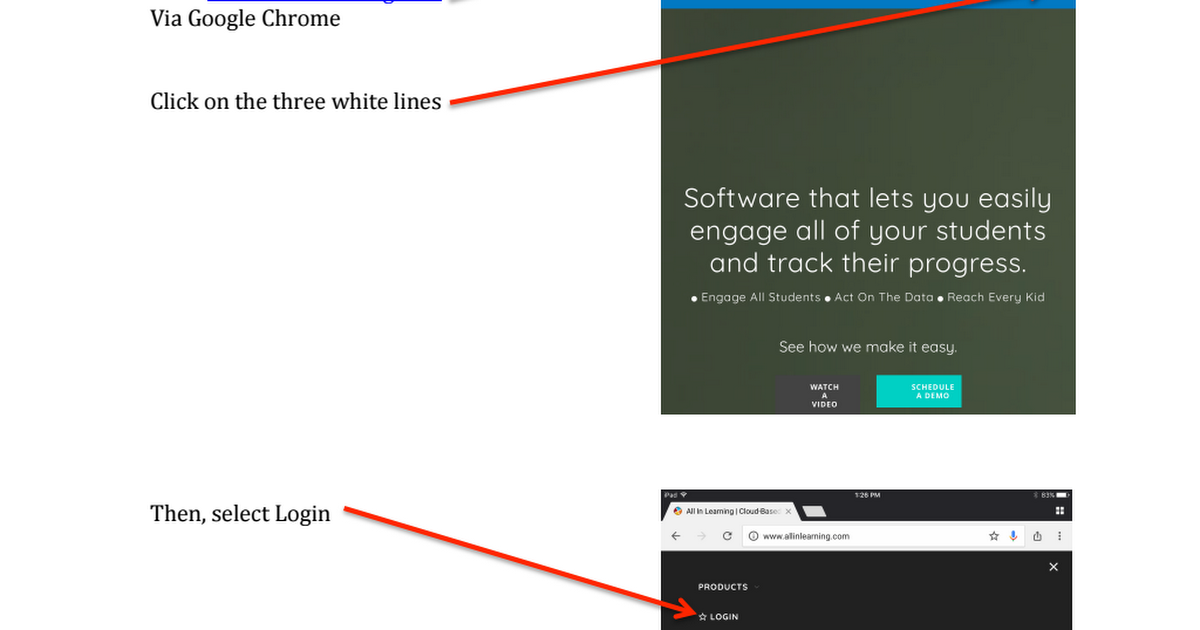
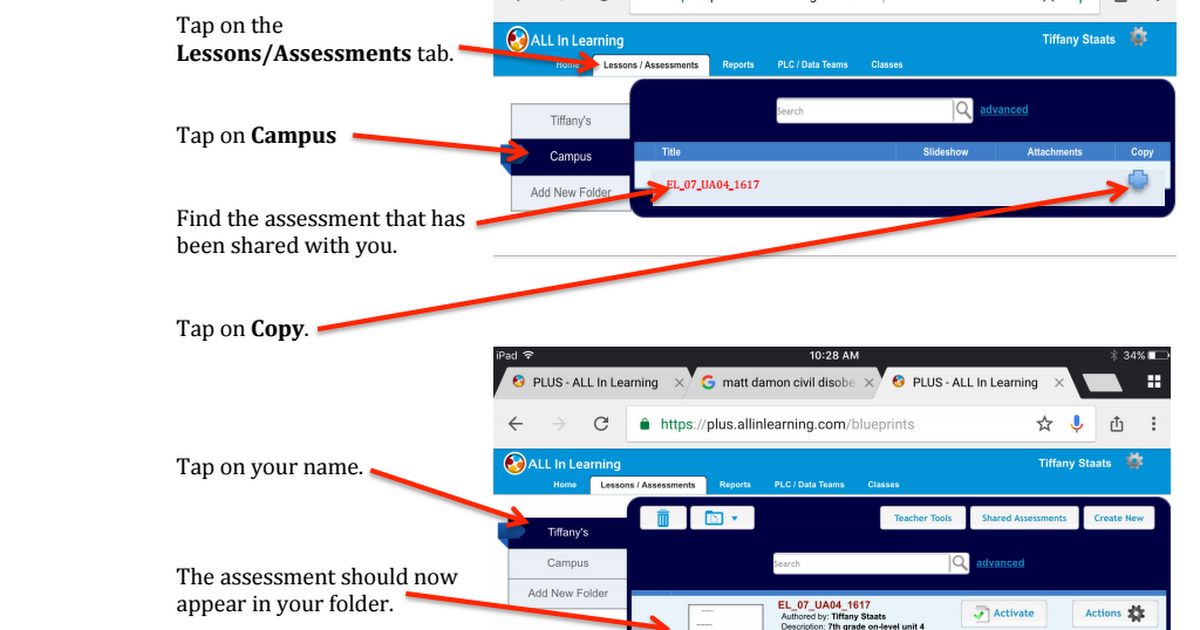
* How to find an assessment that has been shared with you
* How to grade an assessment using the Assist app in All in Learning
Clicksheet for How to Grade an Assessment in All in Learning.pdf

Clicksheet for How to Grade an Assessment in All in Learning.pdf

launch drive.google.com

7 Ways to Use ALL In Learning for Daily Data-Driven Instruction 7 Ways to Use ALL In Learning for Daily Data-Driven Instruction

#1: Bell Ringers, Warm Ups, and Do Nows

At the beginning of class, warm up with a few questions using clickers, student devices, or bubble sheets. The kids can go at their own pace (asynchronously) using clickers, student devices, or bubble sheets, or you can guide them question-by-question with clickers (synchronously).


This activity helps focus students and makes them aware of their misconceptions, giving them ownership of their learning, while giving you immediate data for feedback, instruction, intervention, and enrichment strategies.

#2: Grade Math and Science “Work It Out” Problems in a Snap

You can get instant data even for problems that need to be worked out with pencil and paper with no answer choices provided. Simply reveal the answer options after everyone finishes a question and collect the students’ responses with clickers.

You’ll get instant data on student comprehension, see who’s struggling, and be able to remediate. You’ll also save all that grading time. (5 periods of 30 students with 3 questions each is 450 questions if you were grading manually!)

#3: Score Homework as Class Begins

At the beginning of class, students can drop homework bubble sheets under your document camera for instant scoring, or answer comprehension questions with clickers.

This formative assessment strategy will give you an understanding of what you need to re-teach and who is struggling, and all students will be engaged in the moment with immediate feedback. Oh, and there are huge time savings!

#4: On-the-Fly Verbal Questions with Clickers (Zero Prep)

Verbally ask questions in the moment to quickly gauge comprehension as you teach, and have students respond with clickers! Clickers engage every student, getting them to participate without fear of embarrassment, and provide immediate feedback so you can determine if you need to re-teach a topic.

This activity can be done daily, requires zero preparation of questions or materials, and gives you great data for instant and ongoing analysis.

#5: On-the-Fly Whiteboard or Doc Cam Questions with Clickers (Low Prep)

In the middle of teaching, display a few questions with your doc cam or whiteboard, and have students respond with clickers. You can write it or display existing resources like worksheets or end-of-chapter textbook questions.

This in-the-moment engagement strategy can energize students with participation and immediate feedback, gives you in-the-moment comprehension data, and requires little or no preparation!

#6: On-the-Fly Clicker Questions with Brainpop, Reasoning Minds, etc.

Login to your favorite website or digital resource for teaching or assessment (like Brainpop, Reasoning Minds, Think Central, etc.) and have students respond to on-screen or your own verbal questions with clickers. The floating On-the-Fly engagement bar can sit on top, out of the way of the content you’re displaying!


With very little prep, you’ll be able to engage students, while collecting great comprehension data and providing in-the-moment feedback.This in-the-moment activity engages students gives you instantly-scored

#7: Exit Tickets, Demonstrations of Learning, Tickets Out the Door

If your district has a daily exit ticket initiative, you can use clickers or bubble sheets with printed or displayed questions, and even collect their math/science “work it out on paper” answers by displaying the choices after they finish.


Students can get instant feedback or have appropriate homework assigned, and you can review the data to see if a change in instructional strategy is required for the next class period.

zoom_out_map

Mr. Mason, M.Ed. Ready 1:1 Instructional Coach

Your feedback is greatly appreciated and can be provided HERE.

Email: almason@garlandisd.net
Website: www.edtechmason.com
Location: Naaman Forest High School, Naaman Forest Boulevard, Garland, TX, United States
Phone: (972) 675-3090
Facebook: facebook.com/edtechmason
Twitter: @edtechmason

Loading indicator

close

Created with

Communicate quickly and effectively with interactive newsletters.

Smore empowers educators to connect with their community, streamline school communications,
and increase engagement.

Create a newsletter