

Title II Accessibility
Using Smore Newsletters
Overview of Rules
Smore Newsletters contain many accessibility features available in the free and upgraded versions. Some tools are automatic (heading tagging and decorative image labels for shapes), while others need to be manually added (alt text, color contrast, captions for videos, etc.). This example newsletter will help you make sure your Smore Newsletters are accessible by going over some broad principles and specific examples.
Smore Newsletters can contain multiple media types like:
- Text
- Links
- Photos
- Video/Audio
- Forms
- Events
So all of the rules that apply to those media types still apply:
- Headings/Structure
- Descriptive Hyperlinks
- Alt Text
- Color Contrast
- Accurate captions on audio/videos
- Minimal text on images
- etc.
For more a more in depth look at these rules, use the resources on ...
Images in Smore Newsletters ๐ธ
Smore makes it easy to add alt text to the images you insert.
- Press the "Add a Picture" button and choose one from your files.
- After loading, the system will automatically open an editing panel that includes a box for alt text.
- The alt text field is labelled as optional, but it is required.
- Simply press "Done" to save. You can edit the alt text any time before publishing.
Inserted images should never be flyers.
- Flyers that are .png or .jpg are are not accessible.
- Accessible flyers exist exclusively in .pdf form and cannot be added as pictures in Smore.
- Screen readers cannot read the content inside a png. or .jpg flyer, and alt text is not long enough to describe all of the content within a flyer.
- Even if you include all of the textual content outside of the flyer within a paragraph, you cannot use the inaccessible flyer as an eye-catcher.
- Instead, use a simple photo of the event, opportunity, or product to represent the content.
- You can include minimal text on such a photo โ about 5 words or less. But this text must be included in the alt text as well.
Smore gives the option to make inserted photos into clickable links (the photo in this section is an example). If you choose to do this, you must include the same link in the paragraph text and include a statement of where the link goes in the alt text:
The alt text for the example picture is "Black and red cattle look out through a fence in a feedlot. Text above them says '2026 Beef Feedlot Roundtable Series'. The photo links to social media guidance on Extension's Title II and Digital Accessibility Page." This alt text is 216 characters โ more than the recommended 150 characters; it would be time-saving to use a button instead, which removes the need to include the link in two places (see notes about links).
If you add a logo in the header and add a link to a website, then you will also need to add alt text. By adding a link, the logo now serves a purpose and that purpose must be identified in the alt text. Example linked logo in header
Links and Buttons
Links in Smore function similarly to links in CMS and must follow all of the guidelines included on the Title II and Accessibility webpage.
Smore's Link Types:
- In-paragraph link, which is available in the paragraph toolbar and is the same symbol as in the CMS. However, Smore in-paragraph links cannot be given a text label, which means you need to make sure the preceding or following text describes where the link is going. Example: Learn more about digital flyers at https://myextension.unl.edu/general-resources/title-ii-and-digital-accessibility/#tab-item-digital-flyers-1307.
- Content links, which are located in the "Add content" panel on the right side of the screen, cannot be used within a paragraph section; they are their own new section. Like the in-paragraph links, the content links cannot be given a text label, but they appear with embedded text from the link's location. Example Below
- Buttons, which are located in the "Add content" panel on the right side of the screen also cannot be used within a paragraph section and are a new section. However, by creating a button, you can add a text label to describe where the link leads to. If your button's text label cannot accurately describe the function, you can add a "details" section next to it; filling out the details is not required. Example Below
Audio/Video in Smore Newsletters ๐น
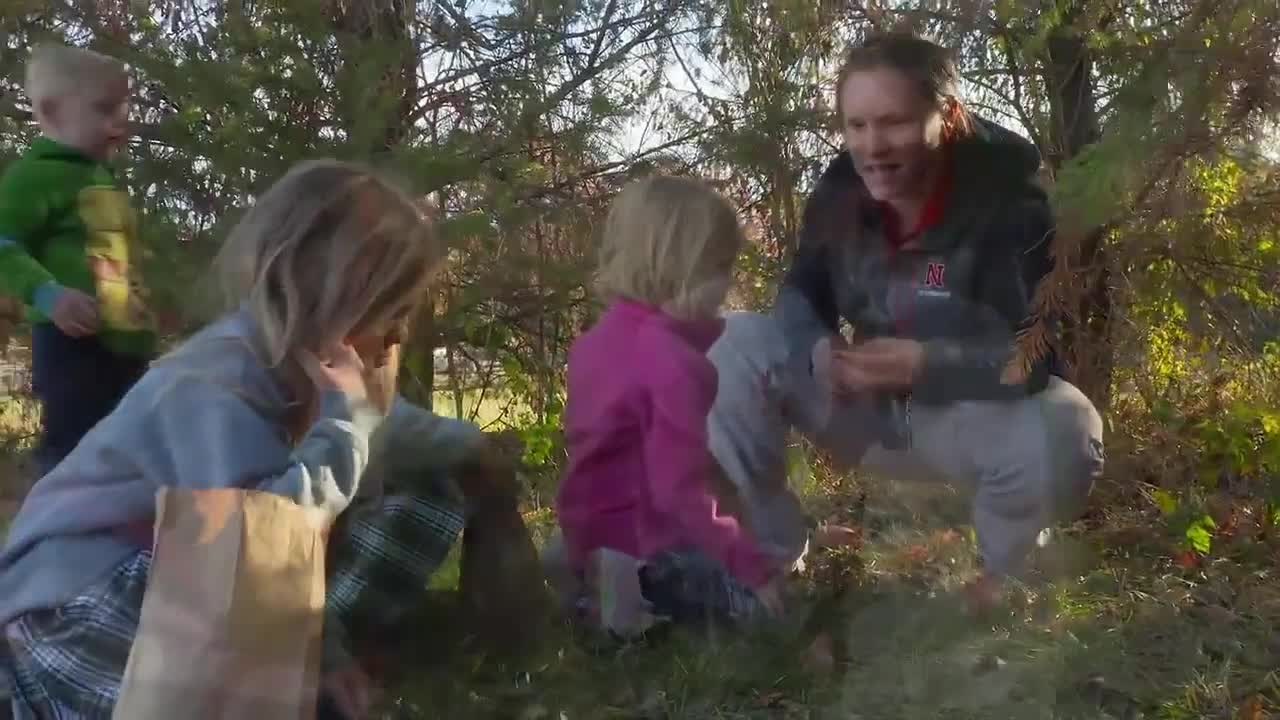
Smore allows you to insert a video link into your newsletter. This means that it will not play within the newsletter, but will pull the reader to a new tab to watch it. The video below is housed in MediaHub, and it has accurate captions, which is a requirement for accessibility. When adding a link to a video, be mindful of where it is housed and access capabilities.
Adding Events and Dates
Newsletters are often used to share upcoming events and dates, but they need to be formatted in an accessible way. Pictures or flyers are not accessible for adding events to a newsletter. One option for Smore is to list out events and details in a bulleted list format.
Upcoming Events:
- February 25-27, 2026 @ 9:00 am: Nebraska Women in Agriculture Conference at the Younes
Conference Center South. The 41st Nebraska Women in Agriculture Conference will be held Feb. 25โ27, 2026, at the Younes Conference Center South, 416 Talmadge St., in Kearney.
Or events can be added with the Event content block available in the panel on the right side of the screen. This allows you to divide out information and automatically connect to a map location. Example Below
Event Information
The 41st Nebraska Women in Agriculture Conference will be held Feb. 25โ27, 2026, at the Younes Conference Center South, 416 Talmadge St., in Kearney.
Summary
While this newsletter contains some Smore specific information, the basic principles discussed are applicable to any newsletter-creating service, free or paid. The key is to remember that each element you add (text, link, photo, etc.) has rules that need to be met for the whole newsletter to be considered accessible.