

Smore logo
remove_red_eye 3.9K
page background

Brightspace by D2L

How to access from School and Home.

Brightspaceby D2LHow to access from School and Home.

Welcome to DPCDSB eLearning! Welcome to DPCDSB eLearning!

How do I login?

If you are trying to access Brightspace by D2L from home, go to https://dpcdsb.elearningontario.ca and use your network credentials. (the username and password that you use to access board computers. studentnumber@educ.dpcdsb.org


To access from a DPCDSB school, students may also connect directly through the DP Student Dashboard (image below) by clicking here if they accessing internet or WI-FI from a DPCDSB school. Click on the "Brightspace" icon to access the site.


Please note: If you are unable to login to a DPCDSB computer because you have forgotten your password, please reset your password by accessing the DPCDSB Password reset tool by clicking here.


If you have yet to set up your ability to reset your own password, you will need to have your network password reset at your home school.


It is strongly recommended that you set up your DPCDSB Password Reset - Self Registration as soon as possible if you have yet to do so. This will ensure that you will have access to the network at all times. For instructions in doing so, please click here.


The recommended browser to use when working in Brightspace by D2L is Google Chrome.

What if I can't login?

If you can't login to a DPCDSB computer please have your network password reset at your home school.

DPCDSB Student Dashboard DPCDSB Student Dashboard

Access the DPCDSB Dashboard by Clicking here
This link will work when a student is working from a DPCDSB School on school internet or WI-FI.
Click here if you have forgotten your network password
This will work if you have previously registered for the password reset self-registration tool.
If you have not, you will need to have a teacher at school use their student management tool to reset your network password in person.

How to find your Course in Brightspace by D2L

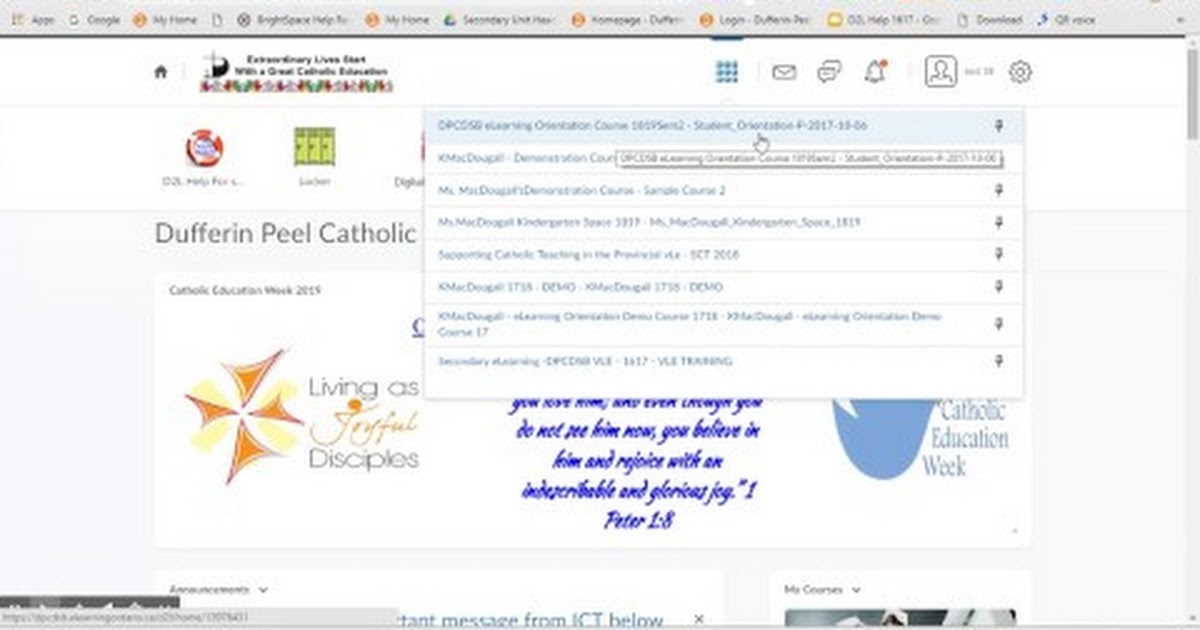
  1. Once you have logged into Brightspace by D2L, navigate to the "Course Selection Waffle" and click on it.
  2. From the Dropdown, select the name of the course you would like to access
  3. Read the message in the "Announcement" for further directions in getting started.


If you would like to see a video demonstration about how to locate a course click on the image below.


If you can log in to Brightspace by D2l but you do not have access to the Student Orientation

Jan 17, 2019 10:50 AM.webm

Jan 17, 2019 10:50 AM.webm

launch drive.google.com
The Catholic Graduate Expectations
Tour an eLearning course
This video gives a general tour of how the eLearning courses are structured and a basic overview of the tools.
Setting up Notifications & Account Settings
How to set up your notifications so that your course updates come directly to your text or email address.
Tour the Student Orientation Course
This is an overview of the student orientation course.

Additional Help and Support Resources for eLearning Students Additional Help and Support Resources for eLearning Students

zoom_out_map

New Support Portal - Live Online Chat

This widget is located on the home page of Brightspace by D2L and on your course homepage. You can get assistance with the tools in D2L through a chat or by calling the number 1-800-222-0209. Assistance from D2L can help with the tools and how to use them. The Brightspace support can't answer questions about the content or assessment of your course. If you require a password reset, before your course begins you will have to fill in the google form above.
zoom_out_map

Password Reset - Self Registration

If you haven't already done so, please register yourself for the Password Reset tool. This will enable you to be able to reset your own network password in case you happen to forget it.

Click here to self-register for this tool.

Please note that you will need to use external email address (not your school email address) to use this feature.

zoom_out_map

Support for Students in Brightspace by D2L

This site will help students with using the tools inside their course.

"CourseHelp.me - Google Sites." Accessed June 8, 2017. https://sites.google.com/site/coursehelpme/.

The DP Board Network Use and Security Policy
zoom_out_map

Scan this QR to gain immediate access to this resource

zoom_out_map

Pulse App.

To learn more about accessing your Brightspace D2L course from your hand-held device, scan the QR Code or enter the following short URL link in your web browser.

http://bit.ly/2PUA4cb

zoom_out_map

Short URL

Enter the Short URL into your browser to gain access to this resource.


bit.ly/DPeLearnSem2

zoom_out_map

Ms. MacDougall - District eLearning Contact


If you have difficulties logging in to the computer network, please use the password reset tool. If you haven't previously signed up for the reset tool, please connect with one of your teachers at your home school to have your network password reset using the student management tool.

Ms. MacDougall is unable to reset network passwords.

Email: kelly.macdougall@dpcdsb.org
Website: https://dpcdsb.elearningontario.ca
Phone: 905-890-0708 (24301)
Twitter: @MsMacSmyj

Loading indicator

close

Created with

Communicate quickly and effectively with interactive newsletters.

Smore empowers educators to connect with their community, streamline school communications,
and increase engagement.

Create a newsletter