
remove_red_eye 149
page background

January 2026

January 2026
January 2026
Join the Conroe ISD Instructional Technology Mailing List!

Looking for campus Instructional Technology support? Looking for campus Instructional Technology support?

If you’d like support from the Instructional Technology department—whether it’s classroom model lesson, professional learning, or PLC support—please submit a request through Incident IQ. Completing the form helps us connect with you quickly and provide the targeted support your campus needs.
How to request Instructional Technology Professional Learning Support
User uploaded image
zoom_out_map Show in original size

Translation Tools Translation Tools

All of the following district approved resources have built in translation features, allowing you to translate directly within the website or software.

User uploaded image
open_in_new zoom_out_map

Click Here ⬆️ Book Creator

With just one click you can now translate a whole book into the language of your choice! Hit the Translate book button and the book will appear on your library shelf - just be sure to check the formatting as words may be longer/shorter in another language.

User uploaded image
open_in_new zoom_out_map

Click Here ⬆️ Canva

Canva’s translation feature makes it easy to support multilingual learners and communicate more clearly with students and families. With just a few clicks, teachers can translate presentations, worksheets, newsletters, and visuals into multiple languages—while keeping the original design intact.
User uploaded image
zoom_out_map

Seesaw Activity Translation COMING IN JANUARY

Translate the text in an entire activity in just one click.
User uploaded image
open_in_new zoom_out_map

Click Here ⬆️ Adobe Express

Eliminate the need for manual translations by using Translate in Adobe Express to efficiently translate your files, templates, and PDFs into 46 languages
Outlook Email Outlook Email

Delay or Schedule send an Email

You can delay the delivery of an individual message by having it held in the Outbox for a specified time after you select Send.


Click here for step by step directions on how to do this.

Canvas-The Learning Management System for Grades 3-12 Canvas-The Learning Management System for Grades 3-12

Canvas Studio

  • Interactive video quizzes
  • Use the built-in screen capture tool (Canvas Studio Capture) to create quick instructional content.
  • Record yourself explaining a complex rubric or project instructions.
  • Use a digital whiteboard app while recording your screen to solve math problems or map out historical timelines
  • Add a text box that appears over the video to explain a difficult vocabulary word or provide a "fun fact" that wasn't mentioned in the audio.
  • Even if you aren't using a formal quiz, you can add an annotation that simply says: "Pause here. Look at the diagram on the screen and try to sketch it in your notebook before continuing."

How to Use Canvas Studio for Interactive Videos & Quizzes

Seesaw-The Learning Management System for Grades PK-2 Seesaw-The Learning Management System for Grades PK-2

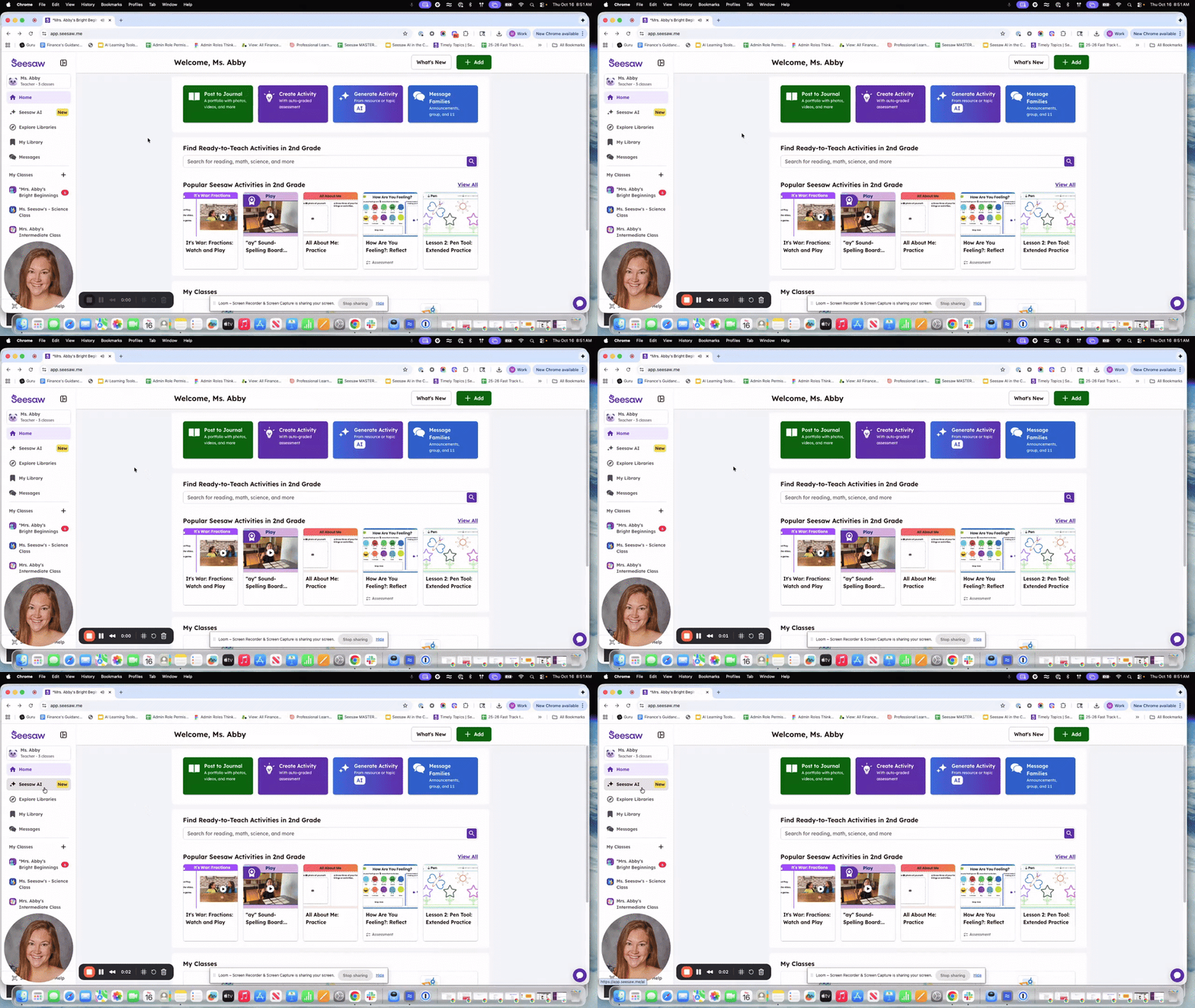
Using Seesaw AI to convert paper instructional resources into digital activities, utilizing all of the multimodal tools available in Seesaw.

Currently still in BETA however they are looking for feedback as they continue to develop this product.

Introducing the Convert a Resource AI Tool: Converting Resources for Enhanced Learning

In this video, I’m excited to show you how to use our new CSOT AI tool, specifically focusing on the

launch loom.com

Adobe Express Adobe Express

Did you know that Adobe Express has educator, ready to go resources that are searchable by content, grade level, and kind of activity? Log in to Adobe Express in your SSO and click on Teach.

User uploaded image
zoom_out_map Show in original size

Canva for Education Canva for Education

Canva makes it easy for teachers to design engaging lessons, visuals, and student resources—everything from slides and worksheets to videos, choice boards, and feedback tools—all in one place. With built-in templates and classroom-ready features, teachers can save time while elevating instruction. The AI in the Classroom course helps educators take this even further by showing how Canva’s AI tools can support planning, differentiation, creativity, and feedback—empowering teachers to work smarter, spark student engagement, and use AI thoughtfully and responsibly in everyday classroom practice.


The couse is beginner fiendly, 8 lessons long, will take approximately 73 minutes and is online at your own pace.

User uploaded image
open_in_new zoom_out_map Show in original size

Tech Safety Tip of the Month Tech Safety Tip of the Month

User uploaded image
open_in_new zoom_out_map Show in original size
Check Out the Brand New CISD Instructional Technology Website

Instructional Coaching Corner Instructional Coaching Corner

User uploaded image
zoom_out_map Show in original size

Check Out the CISD System Status Page! Check Out the CISD System Status Page!

Want to know the status of an application we use in Conroe ISD? Check out the NEW System Status page. Subscribe to alerts for instant notifications, right in your Inbox.


Find it at: status.conroeisd.net

User uploaded image
zoom_out_map Show in original size

Meet the Team! Meet the Team!

User uploaded image
zoom_out_map

Mindy Harding

Coordinator of Instructional Technology

User uploaded image
zoom_out_map

Katie Jackson

Instructional Technology Specialist

User uploaded image
zoom_out_map

Katie Beauchene

District Instructional Technology Coach

User uploaded image
zoom_out_map

Nicholas Eppinette-Smith

District Instructional Technology Coach
Alex Spivey Image
zoom_out_map

Alex Spivey

District Instructional Technology Coach

User uploaded image
zoom_out_map

Sherrhonda Gregory

District Instructional Technology Coach

Follow Us! Follow Us!

User uploaded image
open_in_new zoom_out_map
User uploaded image
open_in_new zoom_out_map
User uploaded image
open_in_new zoom_out_map
CISD Instructional Technology Website
Applications Support Newsletter
Approved Software List
Mindy Harding
Mindy is using Smore to create beautiful newsletters
Loading indicator

close
Powered by